
LinkedIn can be a fantastic tool for networking with others in your industry and staying up to date on industry trends and news. It can also be a place to find leads and turn them into paying clients! The first step is, of course, to create a LinkedIn account. This short tutorial will help you do just that! Let’s begin:
Begin creating your LinkedIn account: If you do not already have a LinkedIn account, you can create a LinkedIn account here.
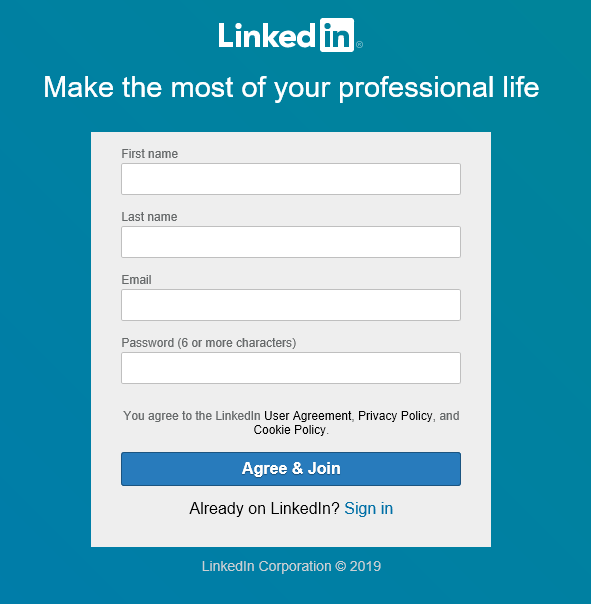
Fill out your details: The website will lead you through all of the signup information it needs, such as first/last name, email, and password. On the next screens, you will enter location and job information.
You will also be given the option to allow LinkedIn access to your email contacts to find connections. You can choose to allow them access, or click Skip to ignore.
Confirm email address: It will also need to confirm your email address via a pin code the system will email to you.
Connect with people you know: Once you’ve confirmed your pin, you will be able to see other accounts that LinkedIn thinks you might already know in real life. You can scroll through and click on the people you’d like to connect with on LinkedIn (use the + icon next to their name), or click “Select All” at the bottom of the page to select everyone on the page. There is also a search box at the top of the page you can use to search for people not listed that you would like to add. Or, if you don’t want to add anyone at this time, you can click “Skip” at the bottom of this page.

Add a profile photo: LinkedIn makes this really easy for you to do, as it allows you to upload your own photo, or import from your Google or Facebook accounts. (You can also “Skip” this step right now if you’re not ready to upload a photo)
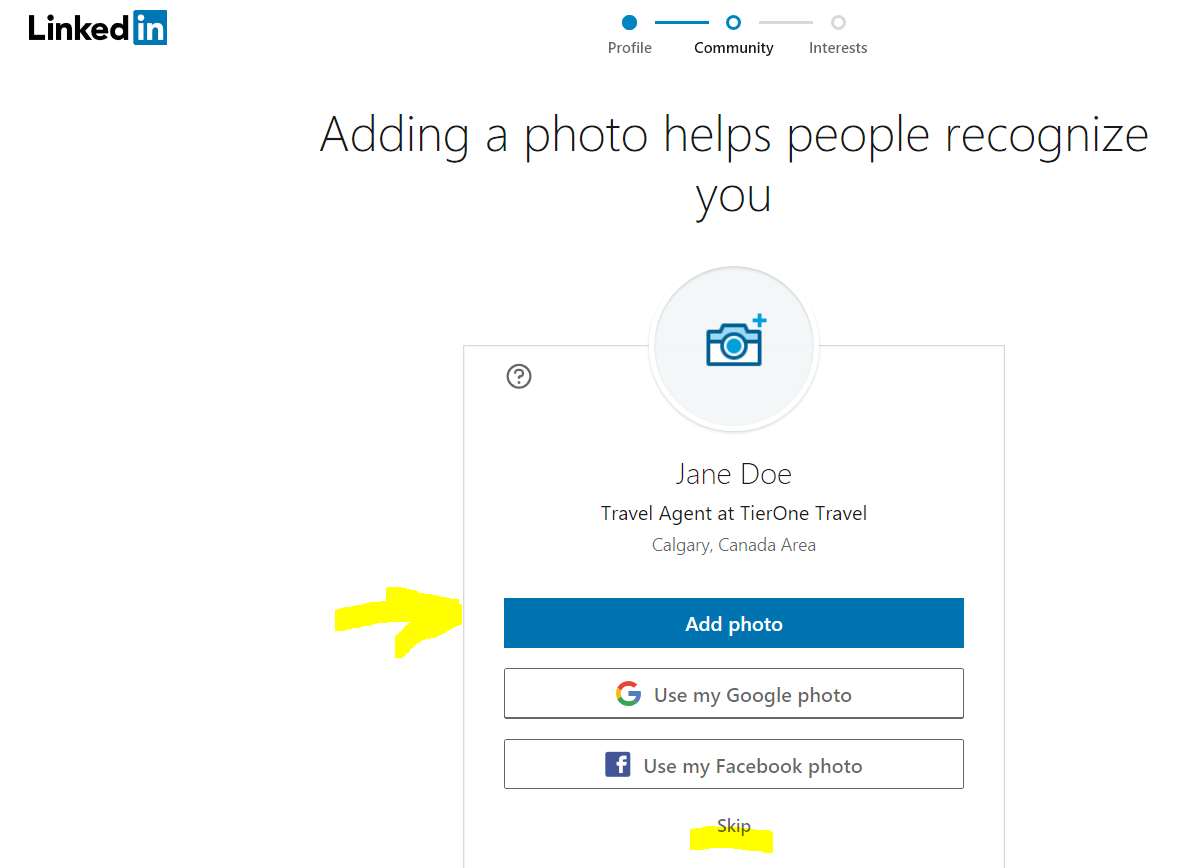
After you’ve passed this profile photo step, LinkedIn will offer you the opportunity to download the LinkedIn app on your phone. They can text you the download link, or you can click the link to your app store of choice. Or, you can skip this step and use LinkedIn from your computer browser instead of from a mobile app.
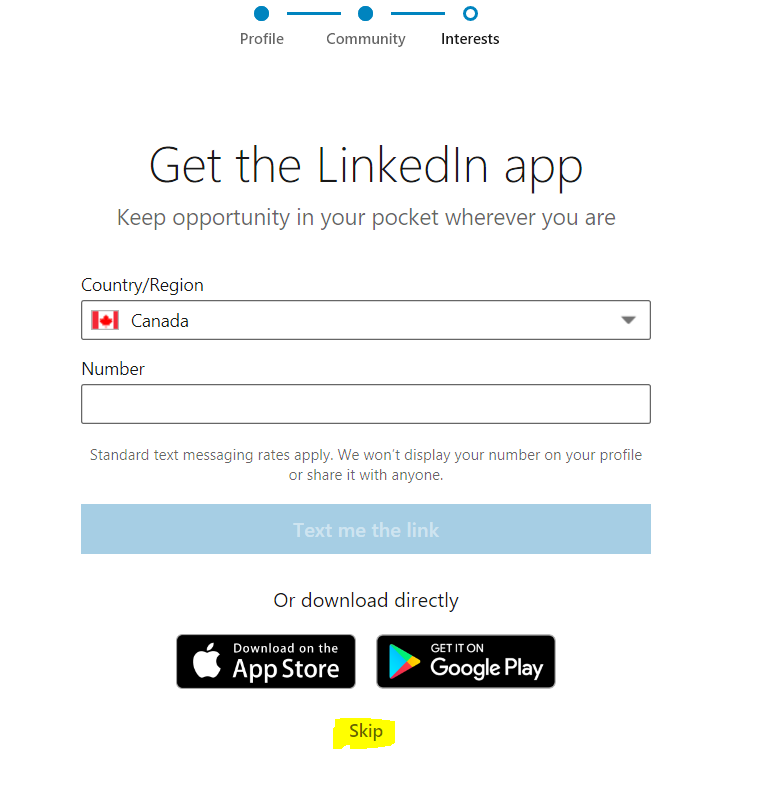
After you have passed this step, LinkedIn will show you your Welcome screen which will look a little something like this:

It will recommend that you get started with LinkedIn in 3 steps: answering a question about your employment, building your professional network, and personalizing your feed. You can see these in 3 boxes near the top of the page.
Start by filling out your employment information (the first box) and click Save.
Then, click Find Connections (the second box). You will see a window pop up that looks like this:
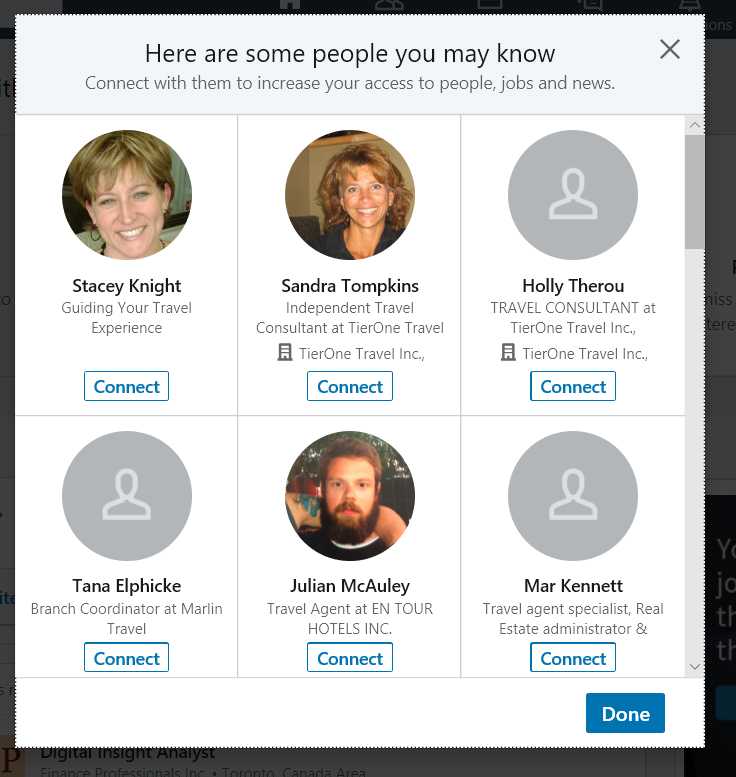
Scroll through the list of possible connections LinkedIn has recommend to you and click “Connect” underneath the name of any you’d like to connect with. (Connecting just means you are inviting them to add your account and see what you post, and vice versa)
After this step, the third box requests that you follow a few hashtags. This just means that if you follow a hashtag (ie. #travel), you will be able to see posts that people make using that hashtag. You don’t need to do this step, but it can be helpful if you’re hoping to use LinkedIn as a place to stay updated with trending news and updates related to your industry.

After you’ve completed this step, you can click Home at the top left of the page to be taken back to your home screen. If you start scrolling down the page (your “feed”), you will begin to see updates from your new connections.
Filling out your profile:
The next most important step is to fill out your profile. Your LinkedIn profile is a professional landing page for you to manage your own, personal brand. It’s a great way for you to tell people who you are and what you do by displaying a general history of your professional experiences and achievements. Use your LinkedIn profile to add a personal touch that a typical resume or CV may not reflect.
There are ways to brand yourself so that you stand out from the crowd and add a great personalized touch. If you’re interested in learning more about this, click here.
Find your profile page:
To find your profile page, click “Me” top right of the screen, then select “View Profile”.
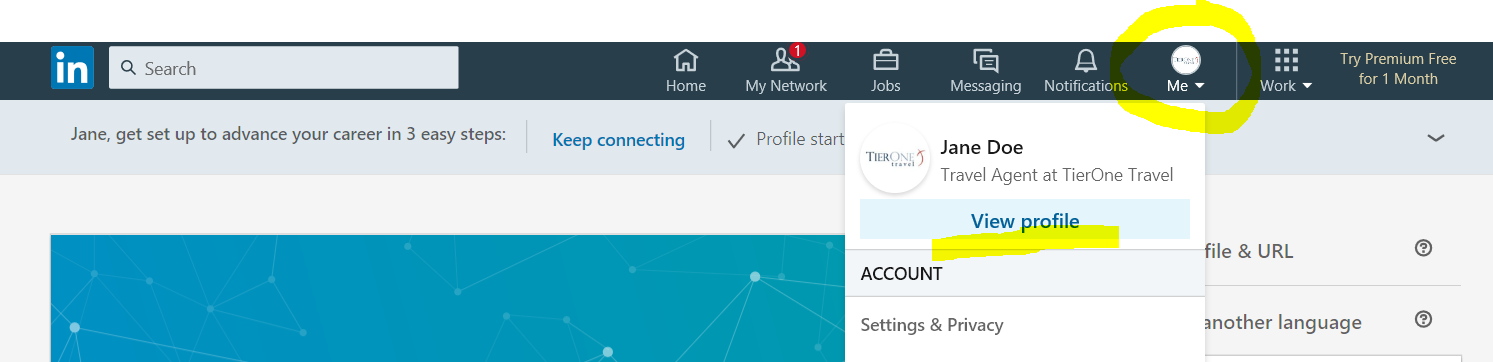
Once you are taken to your profile page, click on Edit public profile on the right side of the screen.
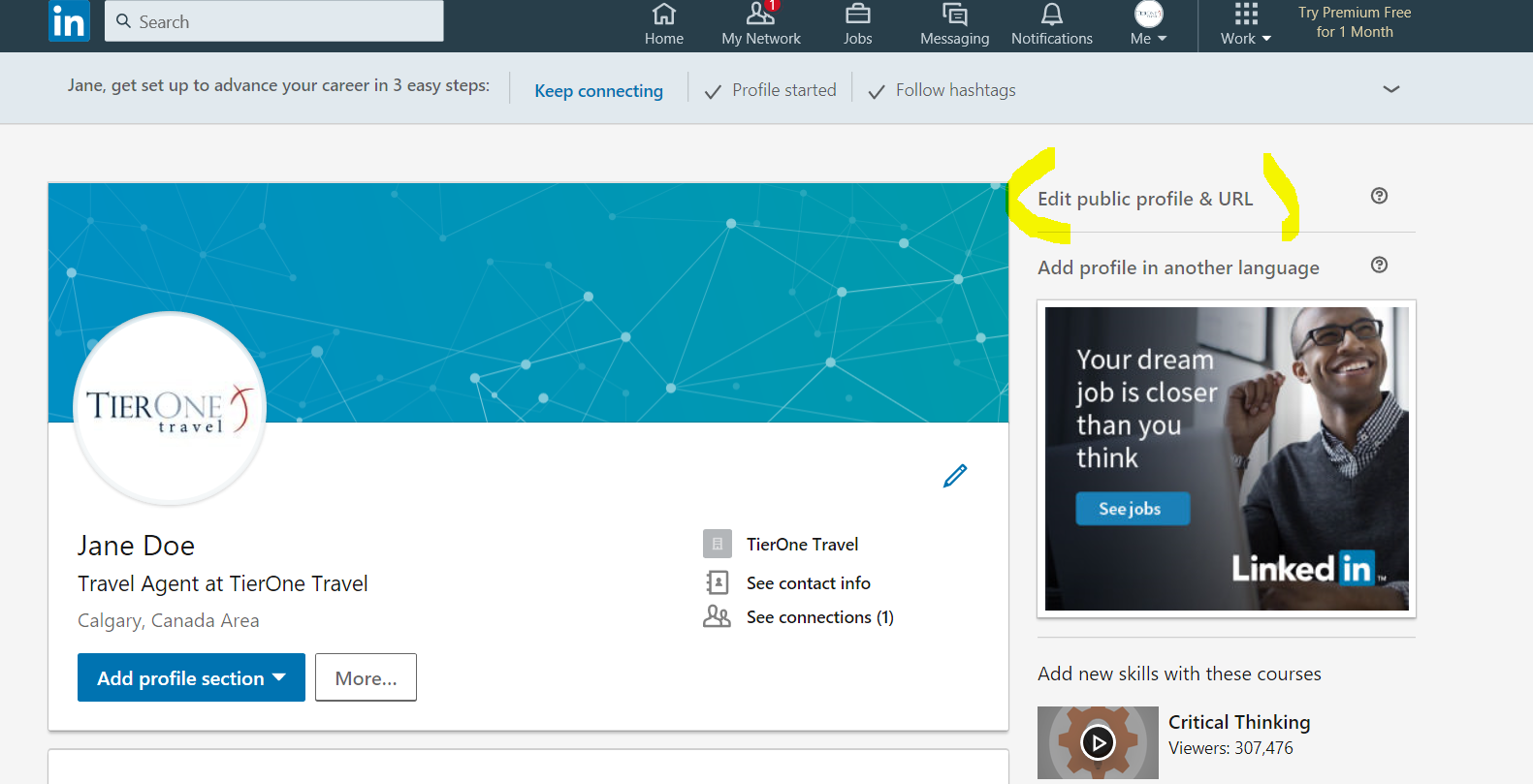
From here, you can follow the steps on the right side of the screen to select your profile options.
You can personalize the URL for your profile by creating a custom URL.
Note: Your custom URL must contain 3-100 letters or numbers. Please do not use spaces, symbols, or special characters.
You can edit your page’s visibility options:
This means that you can control your profile’s appearance for viewers who are not logged-in members. Limits you set here affect how your profile appears on search engines, profile badges, and permitted services like Outlook.
Click Edit Contents when you are done the two steps above and ready to edit the content of your profile.
From here, LinkedIn offers you a large variety of ways to customize your profile page. Have a look around and when you want to edit or add to a section, click the pencil icon.
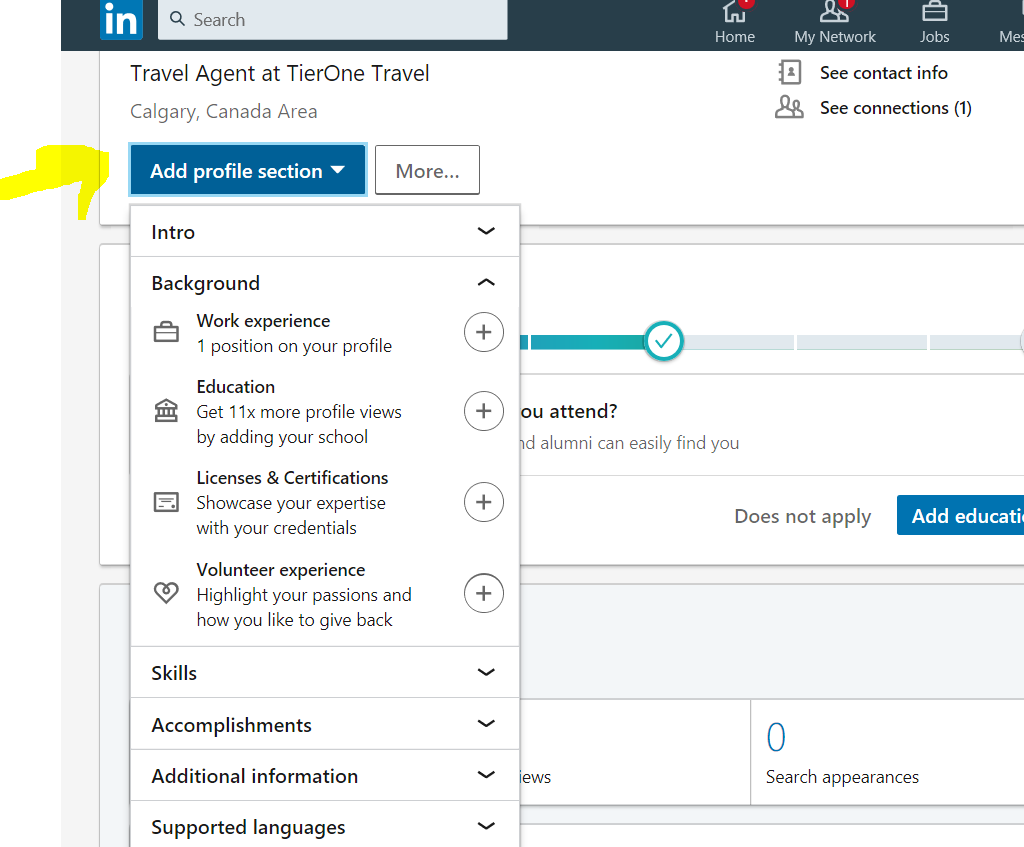
There is also the Add a Profile Section which will offer you lots of options to add to your profile, from work experience, to education, to certifications to skills and accomplishments. Fill out as little or as much as you like here, but remember the more you fill out, the more people feel they know about you and this helps to establish trust, which in turn will help you turn leads into clients.
If you’d like to see a fantastic YouTube video on how to sign up for a LinkedIn profile and fill out your profile page, click here.
For help with LinkedIn, please feel free to contact:
Jennifer Fast
TierOne Travel Marketing Manager
Direct 403.216.2460
Mobile 403.403.991.4640
Email: jennifer.fast@tieronetravel.com